GV Mesh Tools in MatrixGold 4.1: Print-Ready Meshes Faster
Learn how GV Mesh Clean Repair, GV Decimation, GV Mesh Thicken, and GV Mesh Booleans in MatrixGold 4.1 create clean, light, print-ready jewelry files.
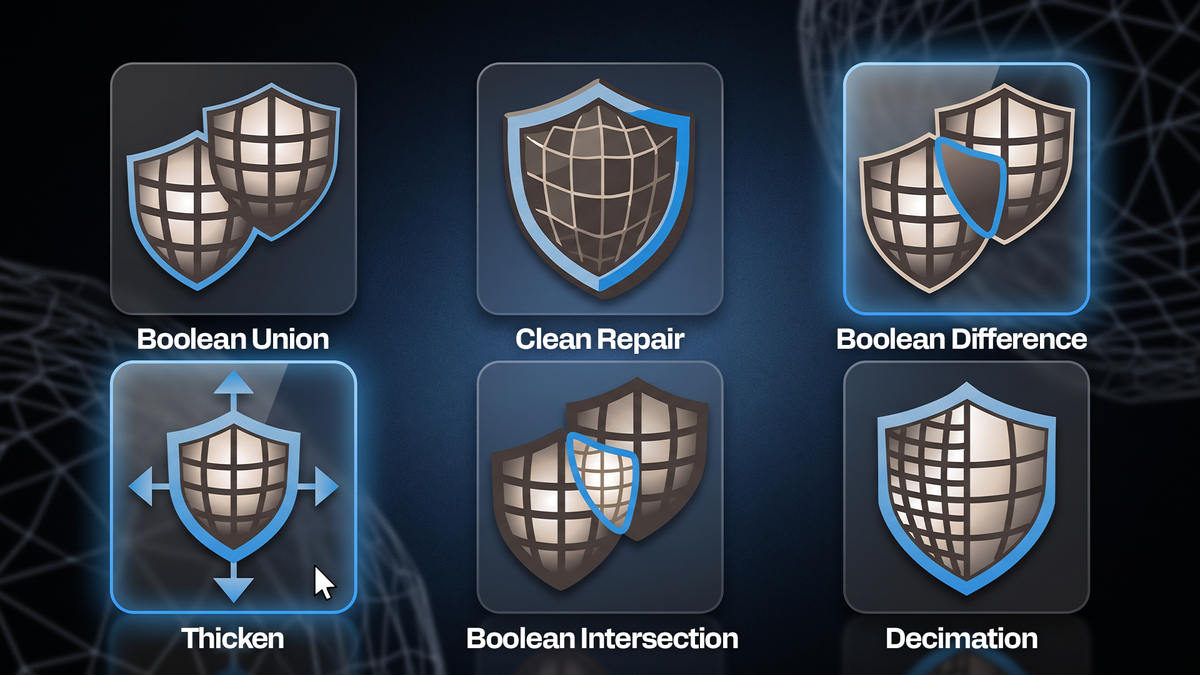
GV Mesh Tools are six new mesh commands in MatrixGold 4.1 that help jewelers prepare clean, light, print-ready files in less time. They include GV Mesh Clean Repair, GV Decimation, GV Mesh Thicken, and three mesh Boolean commands: Union, Difference, and Intersection.
Explore what each tool does, how to use it, and when to choose it over traditional mesh commands.
Table of Contents
GV Mesh Tools Prepare Jewelry Files for 3D Printing
GV Mesh Clean Repair Creates Watertight Meshes Without Changing Topology
GV Decimation Reduces File Size While Keeping Detail
GV Mesh Thicken Adds Thickness Without Self-Intersections
GV Mesh Booleans Combine and Cut Meshes Faster
Frequently Asked Questions
GV Mesh Tools Prepare Jewelry Files for 3D Printing
A 3D printer needs a watertight model: a closed object with no naked edges and no non-manifold edges. GV Mesh Tools are built to get your designs to that point quickly, without the manual patching and cleanup that traditional mesh commands often require.
- GV Mesh Clean Repair: Converts NURBS objects to a watertight mesh without changing topology. Use it before sending a model to print.
- GV Decimation: Reduces the number of faces while keeping detail. Use it when files are too heavy to store, share, or upload.
- GV Mesh Thicken: Adds clean thickness to open meshes. Use it when a texture or surface needs to become a solid.
- GV Mesh Boolean Union: Combines meshes into one object. Use it when joining mesh parts.
- GV Mesh Boolean Difference: Subtracts one mesh from another. Use it when cutting a shape out of a mesh.
- GV Mesh Boolean Intersection: Keeps only the area where meshes overlap. Use it when you need the shared volume of two meshes.
All six commands are in the Mesh menu. GV Mesh Clean Repair is also available in the Manufacturing tab.
GV Mesh Clean Repair Creates Watertight Meshes Without Changing Topology
GV Mesh Clean Repair converts your NURBS objects to a mesh and Booleans all parts together into one watertight solid. Because it does not remesh the model, sharp edges, creases, and the original topology stay exactly as you designed them.
GV Mesh Clean Repair Keeps Your Design Intact
MatrixGold already includes a Mesh Repair command. The difference is in how each one fixes the model:
Mesh Repair
- Remeshes the entire object
- Changes the topology
- Can lose sharp edges and creases
- Can shift stone positions
- Creates a heavier file
GV Mesh Clean Repair
- Converts to mesh and Booleans parts together
- Keeps the original topology
- Preserves sharp edges and creases
- Keeps stones in place
- Creates a lightweight file
Both commands remain available, so you can choose the method that fits your workflow.
How to Use GV Mesh Clean Repair
- Check the model for problems: go to Analyze > Edge Tools > Show Edges to see naked and non-manifold edges.
- Select all the objects you want to join as one solid.
- Click GV Mesh Clean Repair in the Mesh menu or the Manufacturing tab.
- Wait a few seconds while the command converts and repairs the model in the background.
- Set the mesh conversion density. A value of 0.65 is recommended for most jewelry. Higher values create a denser, heavier mesh.
- Press Enter.
- Run Show Edges again to confirm the mesh has no naked or non-manifold edges.
The command works on simple and complex designs alike. Organic models with hundreds of naked edges, which could take hours to patch one by one, are repaired in seconds.
Tip: If a small, separate piece appears inside the model after repair, it is a component that was not connected to the main object. You can delete it.
GV Decimation Reduces File Size While Keeping Detail
GV Decimation lowers the number of faces in a mesh, so files take less disk and cloud storage space and upload faster. A preview shows the result before you apply it.
Choose Between Percentage and Tolerance
GV Decimation offers two ways to control the result:
- By percentage (target triangles): Reduce the face count to a set percentage of the original. The default is 50%. For example, a mesh with about 553,000 faces kept good curvature at 30% to 40%.
- By tolerance: Set the maximum distance the mesh can change from the original. A tolerance of 0.01 mm keeps fine curvature on detailed designs, while 0.1 mm allows larger changes and loses more detail.
Lower percentages and higher tolerances create lighter files but can cause faceted surfaces and lost detail. Start with moderate values and check the preview.
How to Use GV Decimation
- Select the mesh.
- Go to Mesh > GV Decimation.
- Choose By percentage or By tolerance, and set the value.
- Review the preview in Shaded mode.
- Choose whether to delete the input object, then press Enter.
The result keeps the mesh closed, with no naked or non-manifold edges, and ready to print.
GV Mesh Thicken Adds Thickness Without Self-Intersections
GV Mesh Thicken turns open meshes, such as textures created with the Texture 3D builder, into closed, printable solids. Traditional mesh offsets often create self-intersections and other errors; GV Mesh Thicken produces a clean result you can control.
Control the Direction and Angle of the Thickness
GV Mesh Thicken offsets the mesh along its normals. These options let you control the result:
- Inside and outside: The direction depends on the mesh normals. Use Flip to switch the active side.
- Thickness: Set the value, for example 0.5 mm.
- Factor: Change the angle of the offset. For example, a factor of 10 can keep a texture's thickness from extending inside the ring rail.
How to Use GV Mesh Thicken
- Select the mesh and click GV Mesh Thicken.
- Press Enter and wait for the preview.
- Check which side is active. If the thickness goes the wrong way, click Flip.
- Set the thickness value.
- Adjust the factor if the offset angle needs correction.
- Press Enter.
Tip: Use a clipping plane to inspect the cross-section and confirm the thickness is clean. You can run GV Decimation before or after thickening to reduce file size.
GV Mesh Booleans Combine and Cut Meshes Faster
GV Mesh Booleans are MatrixGold's own mesh Boolean commands, separate from Rhino's mesh Boolean operations and built for faster results.
- GV Mesh Boolean Union: Select all the meshes at once to combine them into one object.
- GV Mesh Boolean Difference: Select the first mesh, then the mesh to subtract.
- GV Mesh Boolean Intersection: Select the first mesh, then the second, to keep only the area where they overlap.
Frequently Asked Questions
What are GV Mesh Tools in MatrixGold?
GV Mesh Tools are six mesh commands introduced in MatrixGold 4.1: GV Mesh Clean Repair, GV Decimation, GV Mesh Thicken, and GV Mesh Boolean Union, Difference, and Intersection. They help you create clean, light, print-ready jewelry files.
How do I make a model watertight for 3D printing in MatrixGold?
Select the objects and run GV Mesh Clean Repair. It converts the model to a mesh and Booleans all parts into one watertight solid with no naked or non-manifold edges.
What is the difference between Mesh Repair and GV Mesh Clean Repair?
Mesh Repair remeshes the entire object, which changes its topology and can lose sharp edges. GV Mesh Clean Repair keeps the original topology, preserves sharp edges and creases, and creates a lighter mesh.
What mesh density should I use with GV Mesh Clean Repair?
A density of 0.65 is recommended for most jewelry. Higher values create a denser mesh but also a heavier file.
How do I reduce the file size of a mesh in MatrixGold?
Use GV Decimation. Reduce the face count by percentage or by tolerance, check the preview, and press Enter. Moderate values keep detail while making the file much lighter.