MatrixGold 3.11: The Agility Update. Work Faster with Smarter Jewelry CAD Tools
MatrixGold 3.11 — The Agility Update — introduces a collection of advanced tools, smarter workflows, enhanced organization, stable modeling processes, and powerful visualization.
MatrixGold 3.11 — The Agility Update — introduces a collection of advanced tools, smarter workflows, enhanced organization, stable modeling processes, and powerful visualization. Whether you specialize in custom pieces, production collections, or retail design services, this update gives you more speed, precision, and agility throughout your entire workflow.
Below is a full breakdown of the most impactful new features and how they elevate the jewelry design experience.
What’s New in 3.11 and Why It Matters
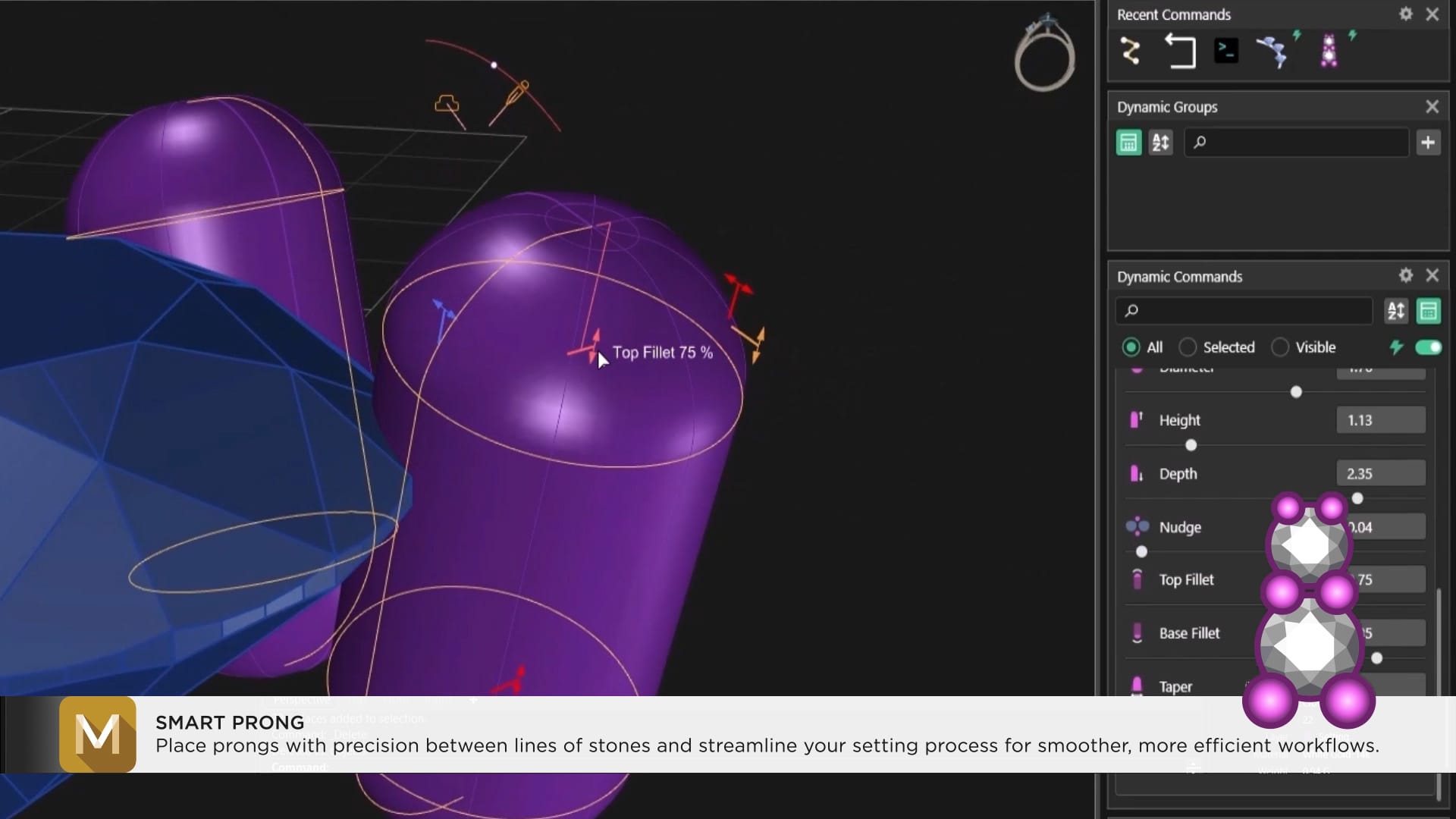
Smart Prong and Edit Prong
With the new Smart Prong tool, you can automatically add prongs to multiple gems at once. Once you select your stones and hit “Smart Prongs,” MatrixGold generates the prongs — then sliders let you control diameter, angle, tilt, tapering, and even custom profile curves. Because everything remains parametric, any adjustment to gem size or layout will instantly update the prong geometry.
If you need per-prong customization, Edit Prong lets you tweak individual prongs (position, rotation, profile, taper) without affecting others — a level of control that wasn’t possible before.
Why it matters: This dramatically cuts manual work when setting stones, while giving you high-precision control — excellent for both repeatable jobs and one-of-a-kind designs.
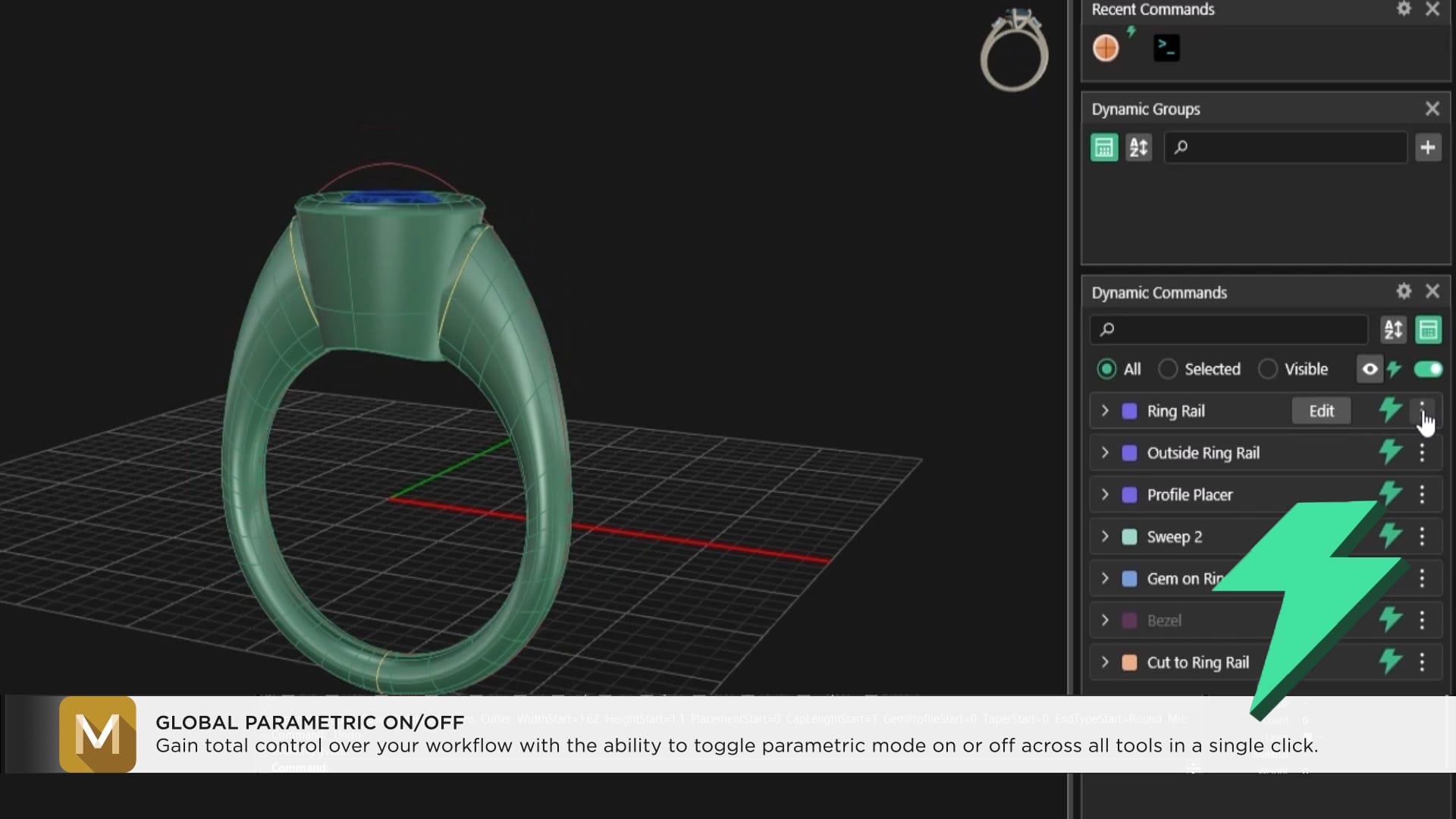
Global Parametric Mode toggle
One of the most requested features: a global on/off switch for parametric mode. Turn it off to make manual edits (e.g., reshaping, resizing, modifying bezels or stones) without triggering real-time recalculations. Once your edits are done, re-enable parametric mode to regenerate the full model.
Why it matters: Especially helpful when you’re doing complex edits or batch changes; this saves you from waiting through constant recalculations and gives you better control over when the model updates — boosting both speed and flexibility.
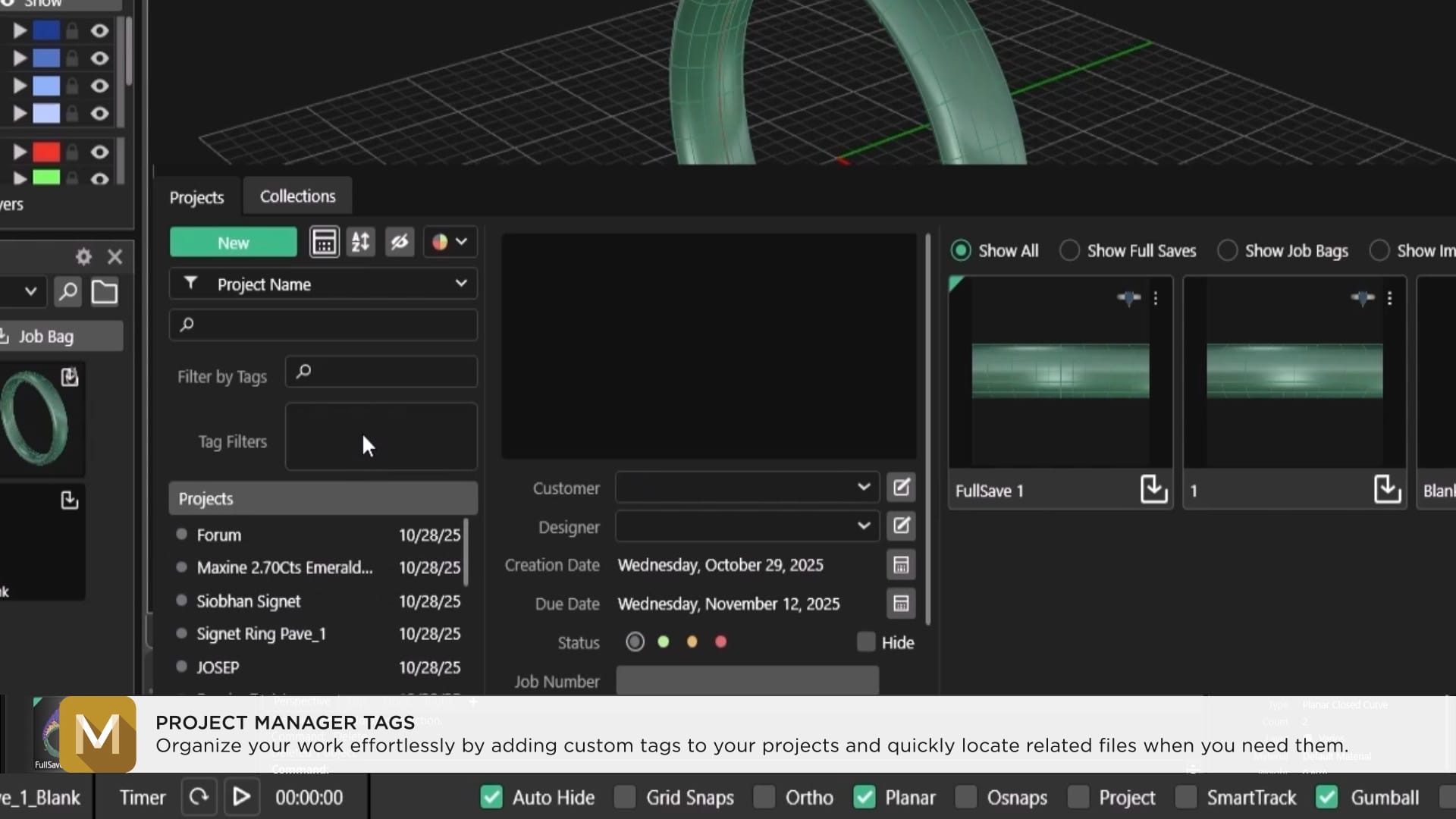
Project Manager Tags
3.11 introduces a tagging system for projects. When saving a design, you can add any number of custom tags (e.g., “weddingband,” “2025collection,” “ring,” etc.). Later, when browsing projects, you can filter by tag — instantly narrowing down to the designs you need.
Why it matters: For anyone managing multiple clients, collections, or large numbers of designs, this brings orders and saves time hunting through countless files.
Bounding Box tool Measurments
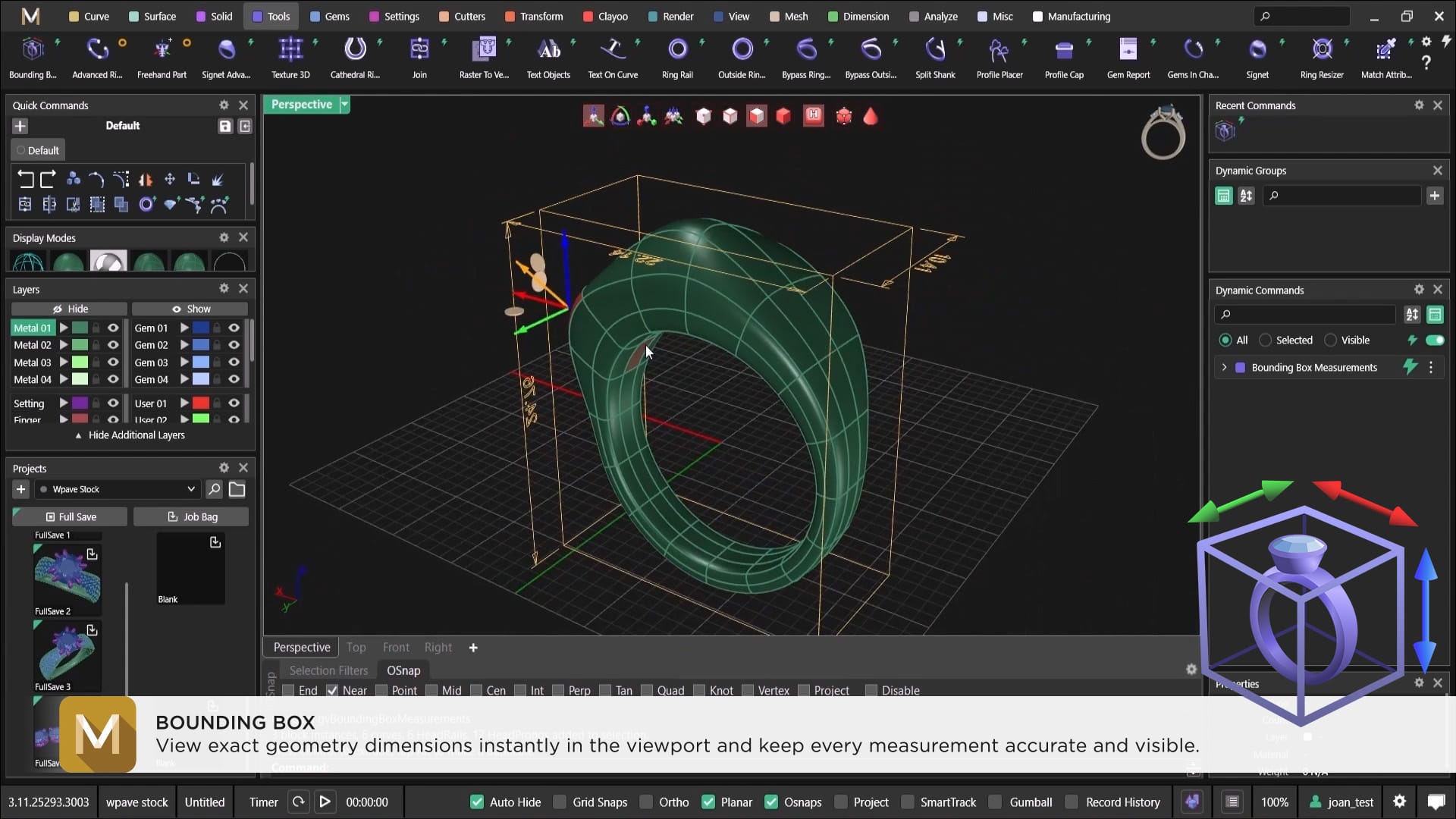
The Bounding Box tool allows you to get immediate dimensions (length, width, height) of a model or component. If you adjust the model (e.g., change length or resize), the bounding box updates live. This is especially useful for sizing bracelets, lengths, overall volume, or fitting within production parameters.
Why it matters: Get accurate, real-time measurements before manufacturing can save time and materials (and cost).
Enhanced Boolean stability
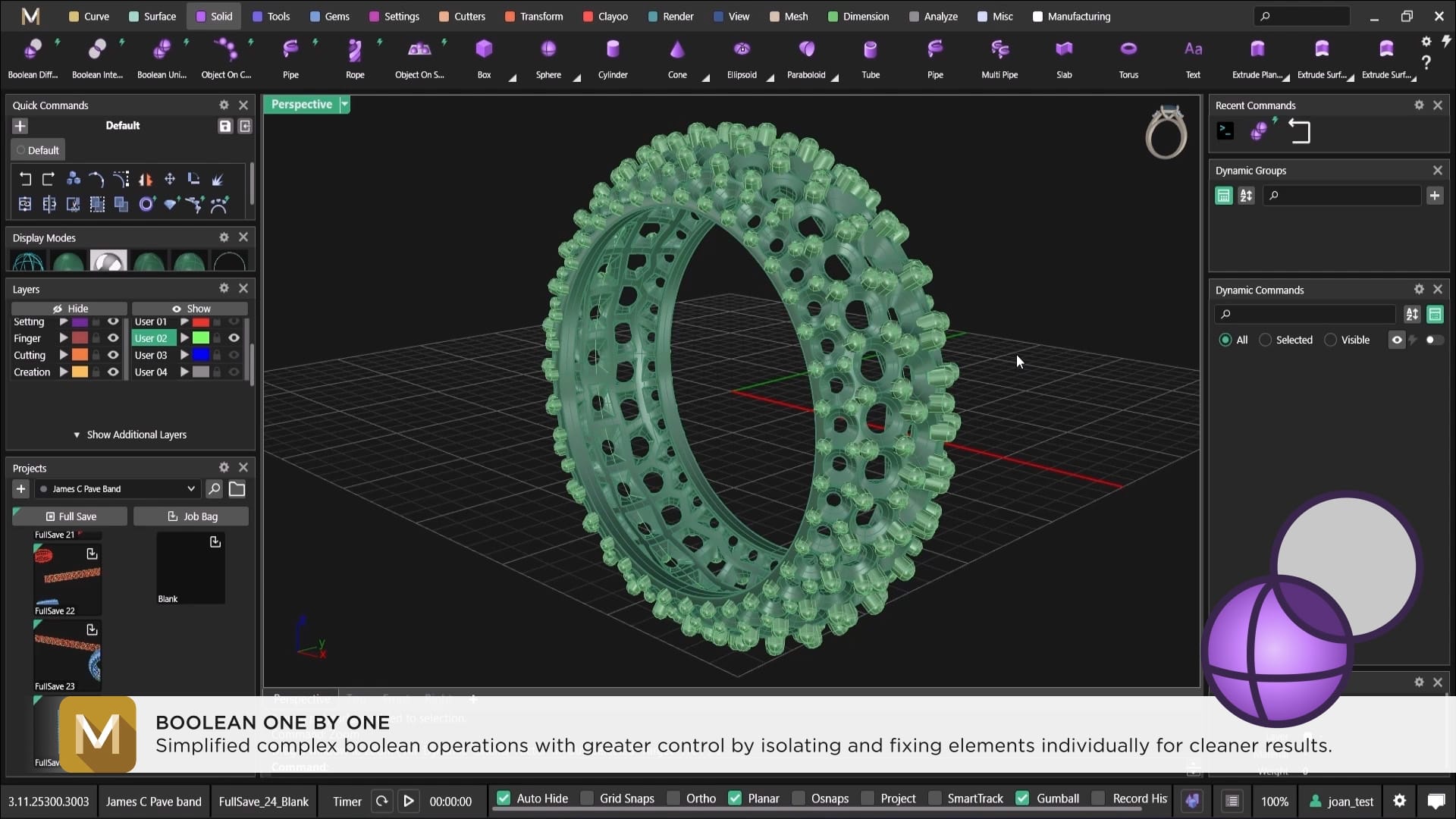
Boolean operations are now more stable. When combining many objects, the new Boolean one by one option processes each operation sequentially. This avoids overloading errors and ensures cleaner, predictable geometry.
Why it matters: Complex models — especially prong-intensive or multi-component pieces — are now much less likely to produce geometry errors or broken meshes.
Customizable Quick-Command Tabs and Color Coding
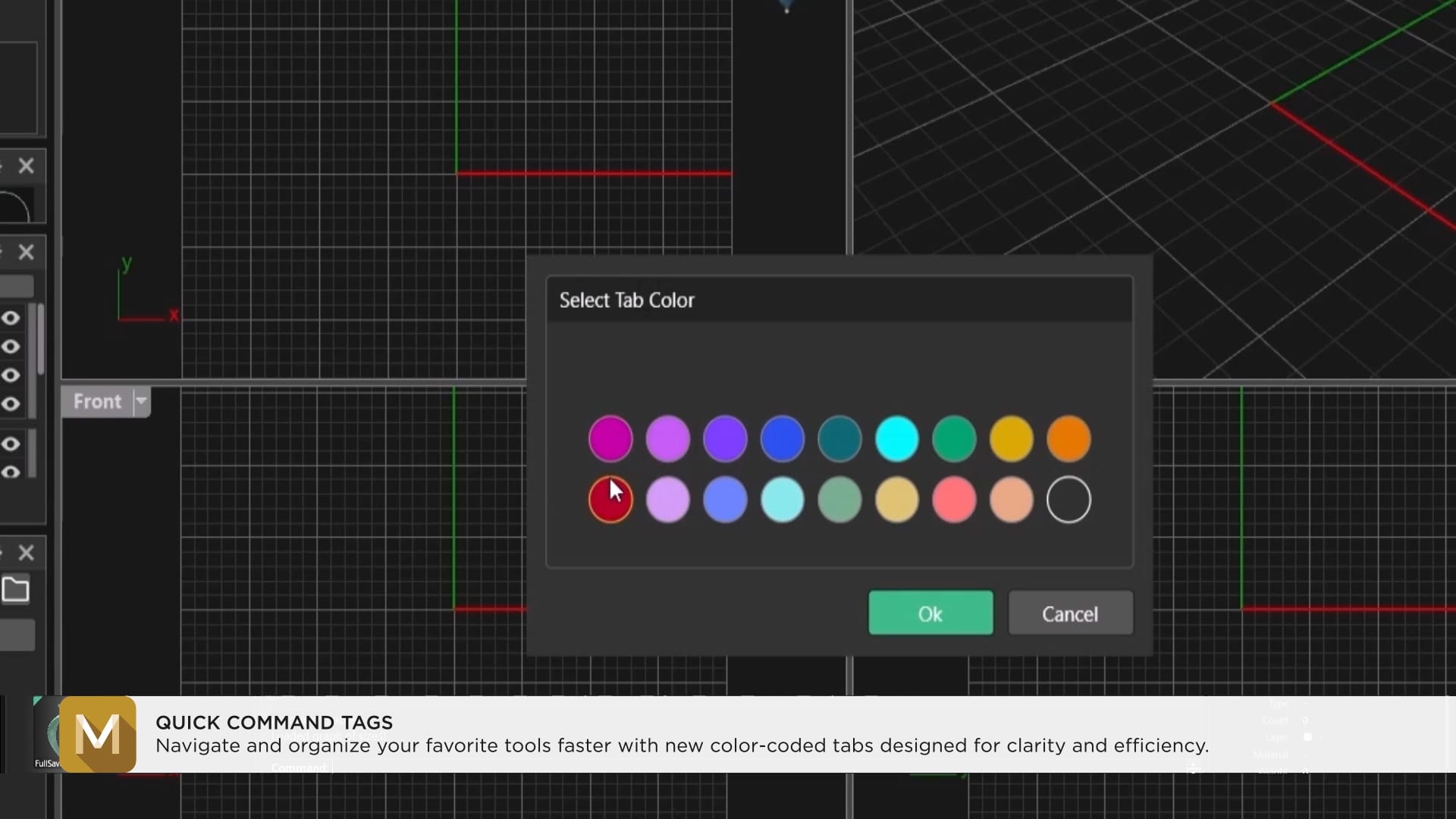
Quick-command tabs (introduced earlier) now support color tags. You can assign colors to different tool sets or workflow stages. Plus, you can export/import the tab layout — useful if you’re setting up multiple workstations or sharing setups with colleagues.
Why it matters: A small UX improvement, but one that reduces cognitive load, speeds up your workflow, and keeps your workspace organized — especially when switching between tasks or projects.
Matching Band Rail — automatically build matching rings or sets
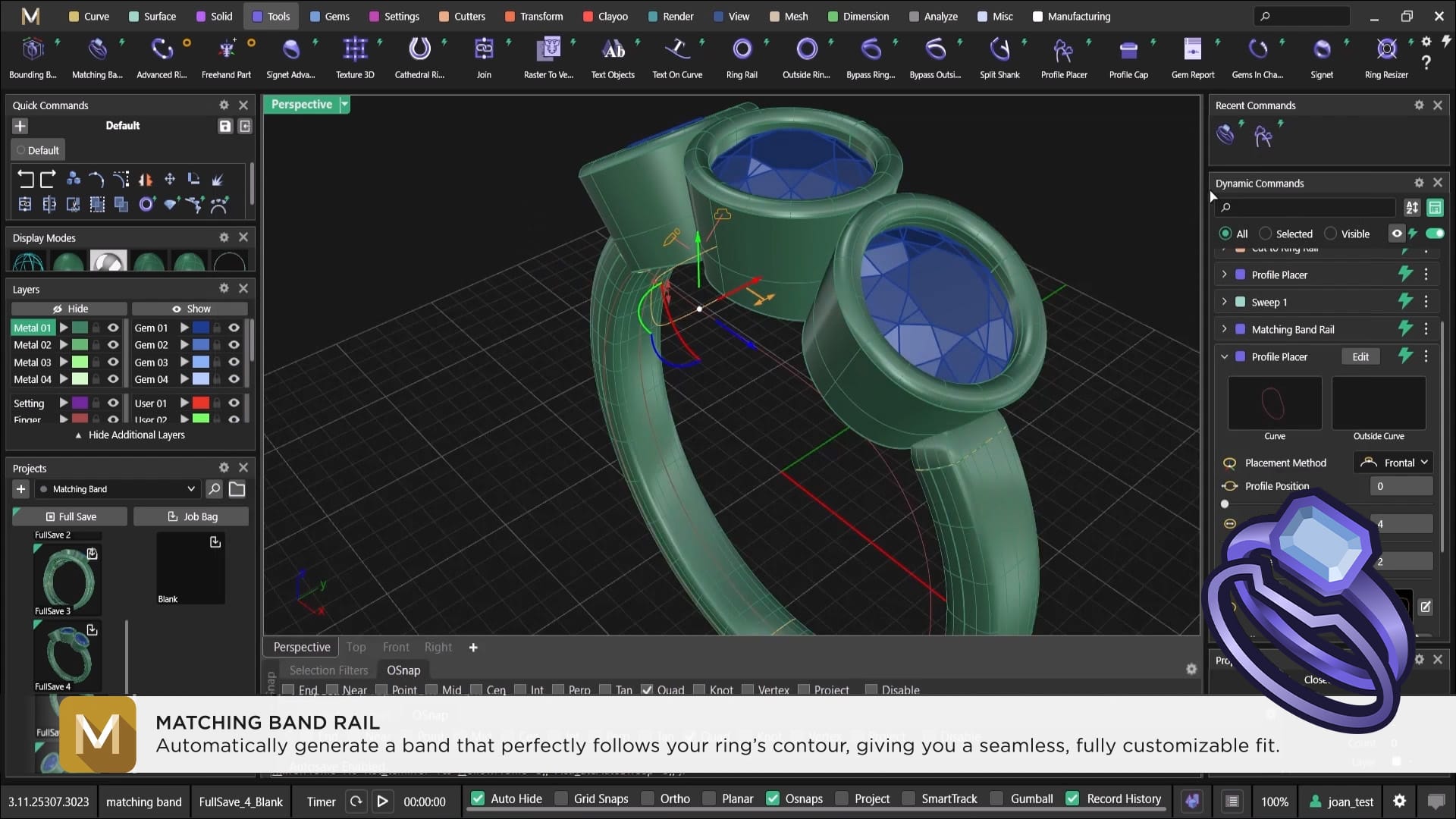
The new Matching Band Rail tool lets you generate a curve that follows both an existing ring rail and reference geometries. Once the rail is created, you can apply a profile and use sweep/rail to generate a matching band. And thanks to parametric mode, changing the main ring (size, shape, etc.) will automatically update the matching band.
Why it matters: Ideal for wedding sets, stacking rings, or matching bands — this saves tons of time and ensures perfect alignment between pieces.
Integrated Viewer — realistic renders right from the CAD stage
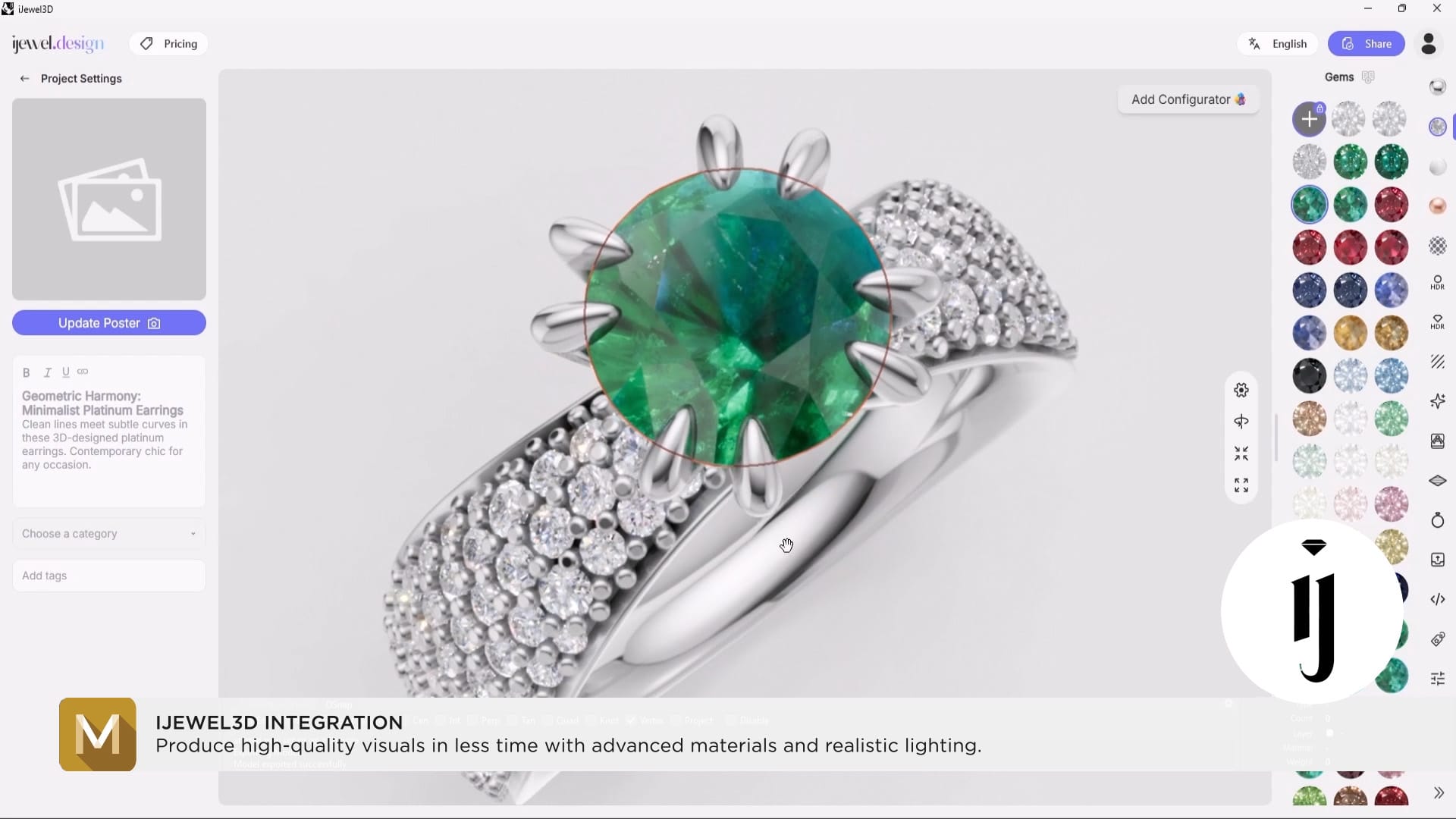
Perhaps the most anticipated feature: Viewer integration directly inside MatrixGold. Once your model is finished, a single click sends it to the built-in viewer — you can then apply metals, gemstones, backgrounds, lighting setups, and even visuals in ultra-high resolution or export 360° animations. Gemstone inclusions are visible, and material changes update in real time.
Why it matters: This brings a visualizer into the same workflow as modeling. You get photorealistic previews fast — ideal for client presentations, marketing visuals, or e-commerce listings — without exporting external software.
Explore the latest features and enhancements in MatrixGold 3.11.